 SCL Events
Invite your team
Staff accounts, which role to give each person, the door team’s sign-in, and letting SCL Events help.
Create a staff account
Where: Team & security › Staff Accounts › Create staff accountEnter a Username and Display name, choose the Role, the customer and the event, and an Initial password. Choose Create Staff Account. Give the person that password privately, never in a group chat. It is temporary: the first time they sign in, they choose their own.
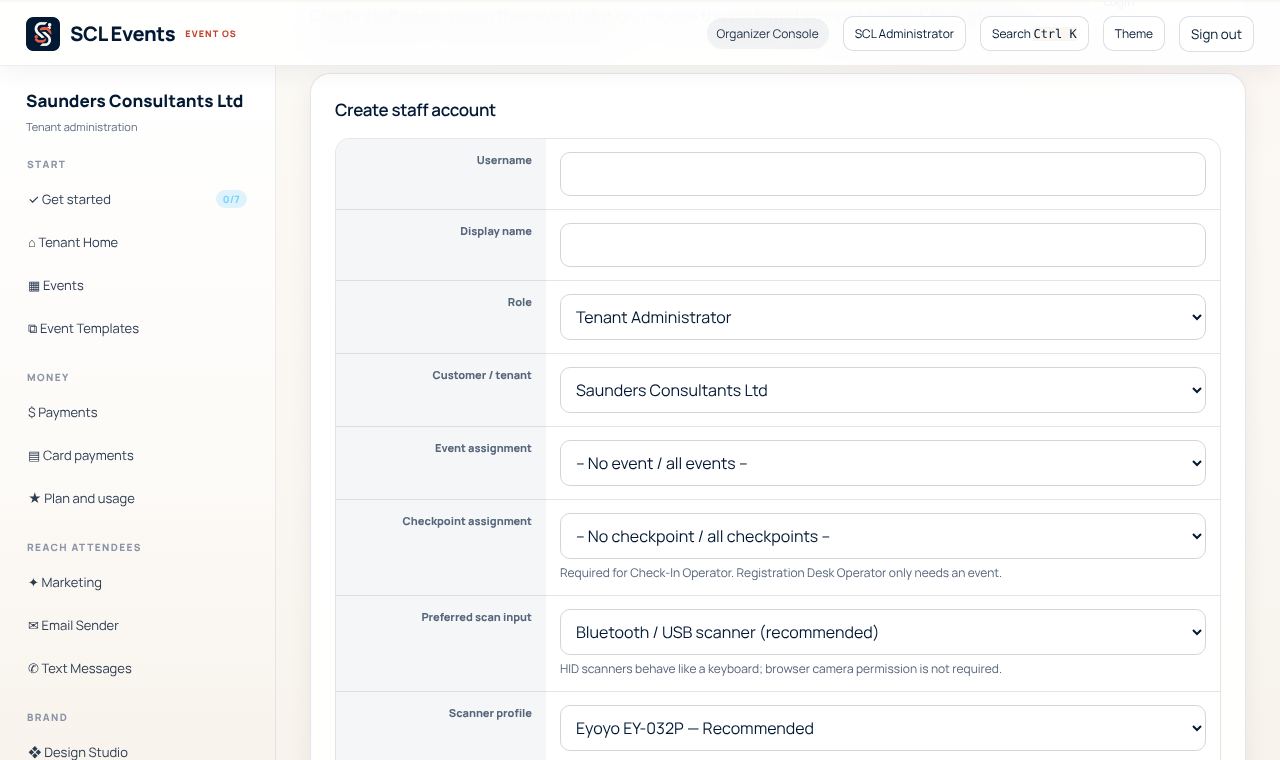
From the demo event. Your screen shows your own event. Choose the right role
Where: Create staff account › RoleTenant Administrator runs everything for your organization. Event Administrator runs one event. Registration Desk Operator works the desk; Check-In Operator scans at the door; Checkpoint Supervisor runs the doors and zones. AV operator runs one event's screens, slides and Q&A, and Shuttle Marshal its shuttle. Designer works on pages and branding only, with no access to attendees or money. Give each person the smallest role that does their job.
Set up the door team
Where: Staff Accounts › Open Staff Scanner LoginDoor and checkpoint staff sign in at the Staff Scanner Login on a phone or tablet. Assign their event and checkpoint, and how they scan (a Bluetooth or USB scanner is recommended; a phone camera also works), when you create the account.
Keep the team within your places
Where: Money › Plan and usageSpeakers, staff, volunteers and exhibitor staff use the event's team places, not attendee registrations. Plan and usage shows how many you have and sells more in packs.
Let SCL Events help
Where: Team & security › SCL Events support accessWhen you hire SCL Events to build or run an event, or ask us for help, give our team access here: some events or the whole organization, view only or able to make changes, with or without downloading attendee lists, until a date you choose. Each person on our team uses their own account, everything they change is listed under Support activity with their name, and you can end access at any time. Your card gateway, bank details, staff accounts and sign-in settings are never open to us.
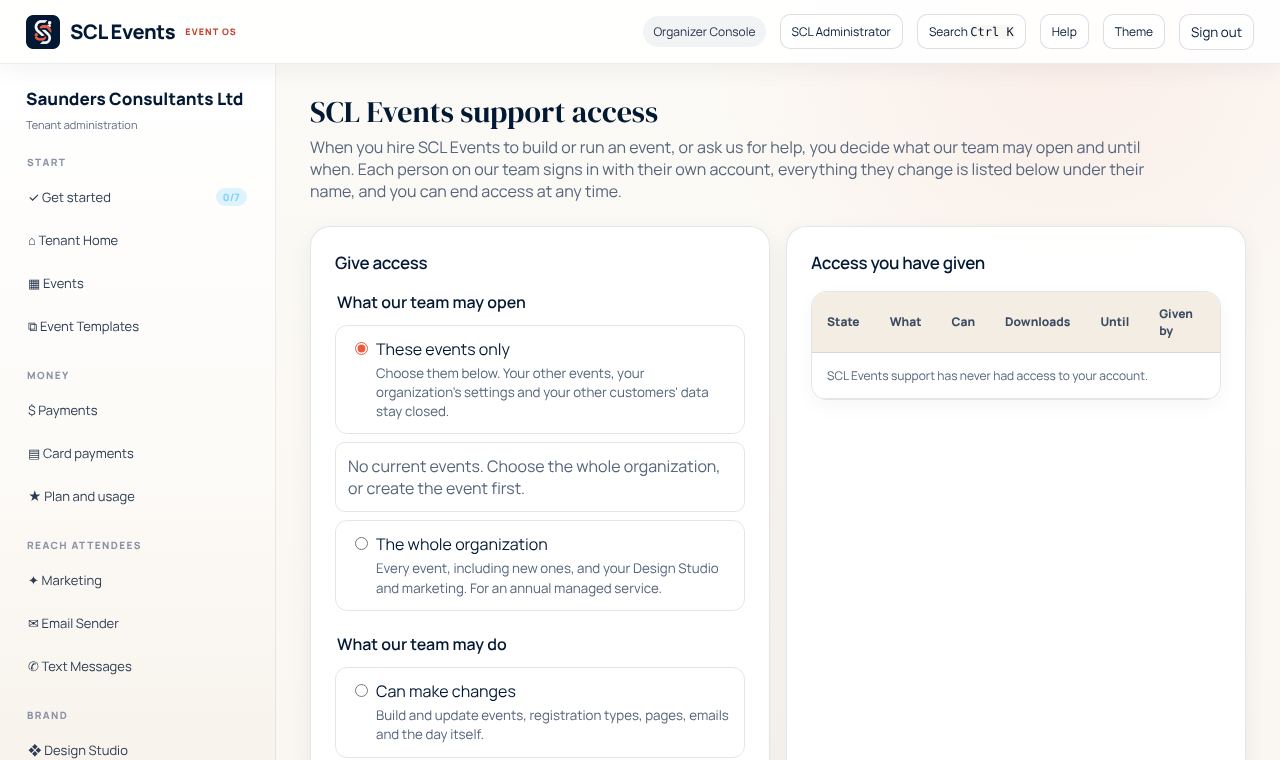
From the demo event. Your screen shows your own event.