 SCL Events
Keep attendees informed
The emails that go out by themselves, reminders with your own note, writing to everyone, and text and WhatsApp messages.
See what has been sent
Where: The event › Attendees & messages › EmailConfirmations, passes and payment messages go out by themselves. The Email page lists every email sent for the event, with its status, so you can see whether someone's ticket reached them. Search finds a person's messages.
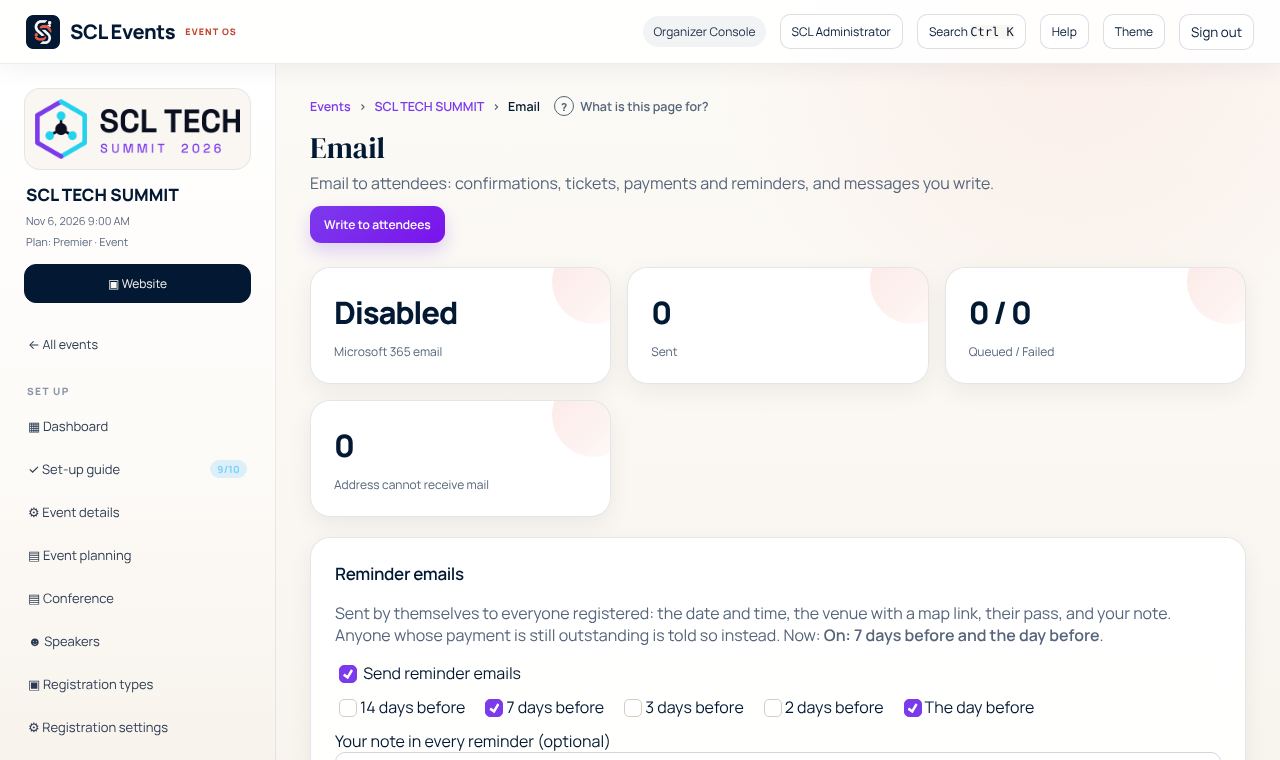
From the demo event. Your screen shows your own event. Set the reminder emails
Where: Email › Reminder emailsReminders go by themselves, 7 days and the day before unless you change it. Each has the date and time, the venue with a map link and the person's pass. Add your own note, such as parking or what to bring, and it appears in every reminder. Anyone whose payment is still outstanding is told so instead. Untick Send reminder emails to switch them off.
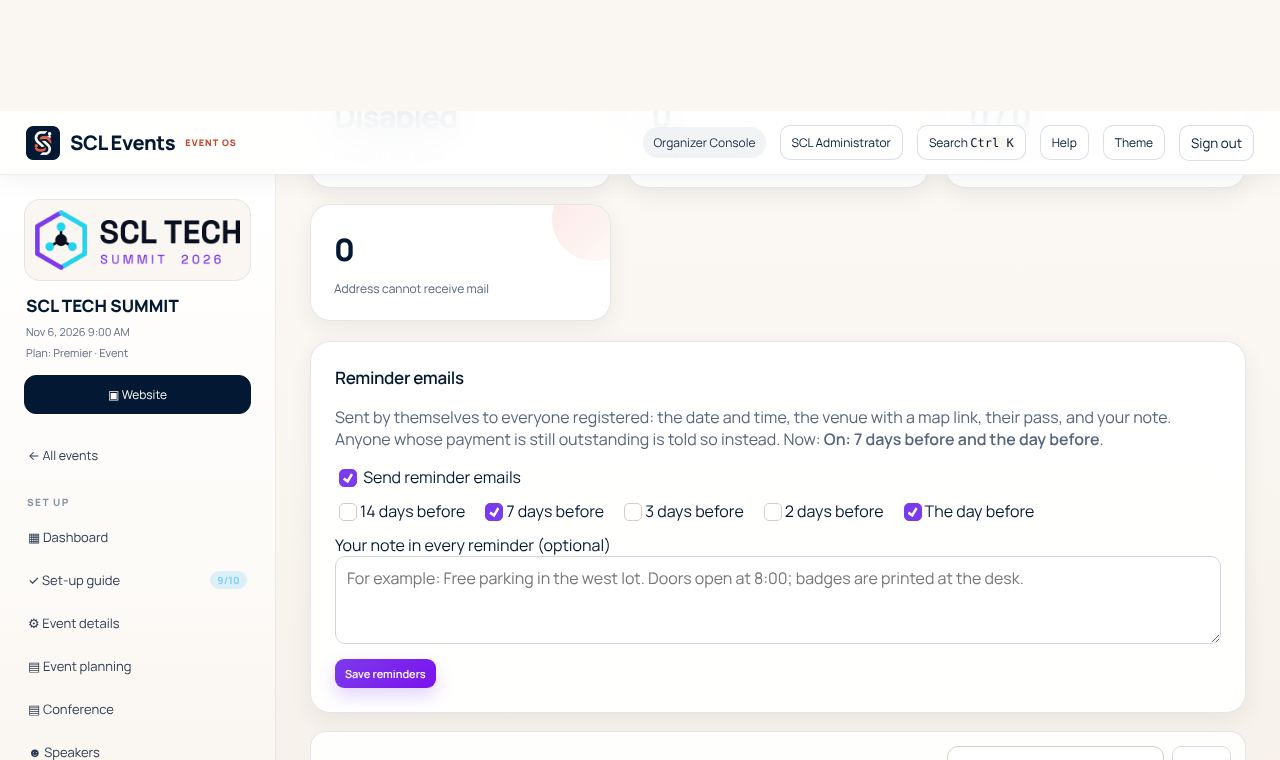
From the demo event. Your screen shows your own event. Write to attendees
Where: Email › Write to attendeesChoose who gets it: confirmed attendees, everyone registered, one registration type, or who has or has not checked in. Write the subject and the message; {{FirstName}} becomes each person's first name. Send a test to yourself, tick that you checked it, then send. Each person gets their own email with a button to their pass, and each one appears on the Email page as it is sent.
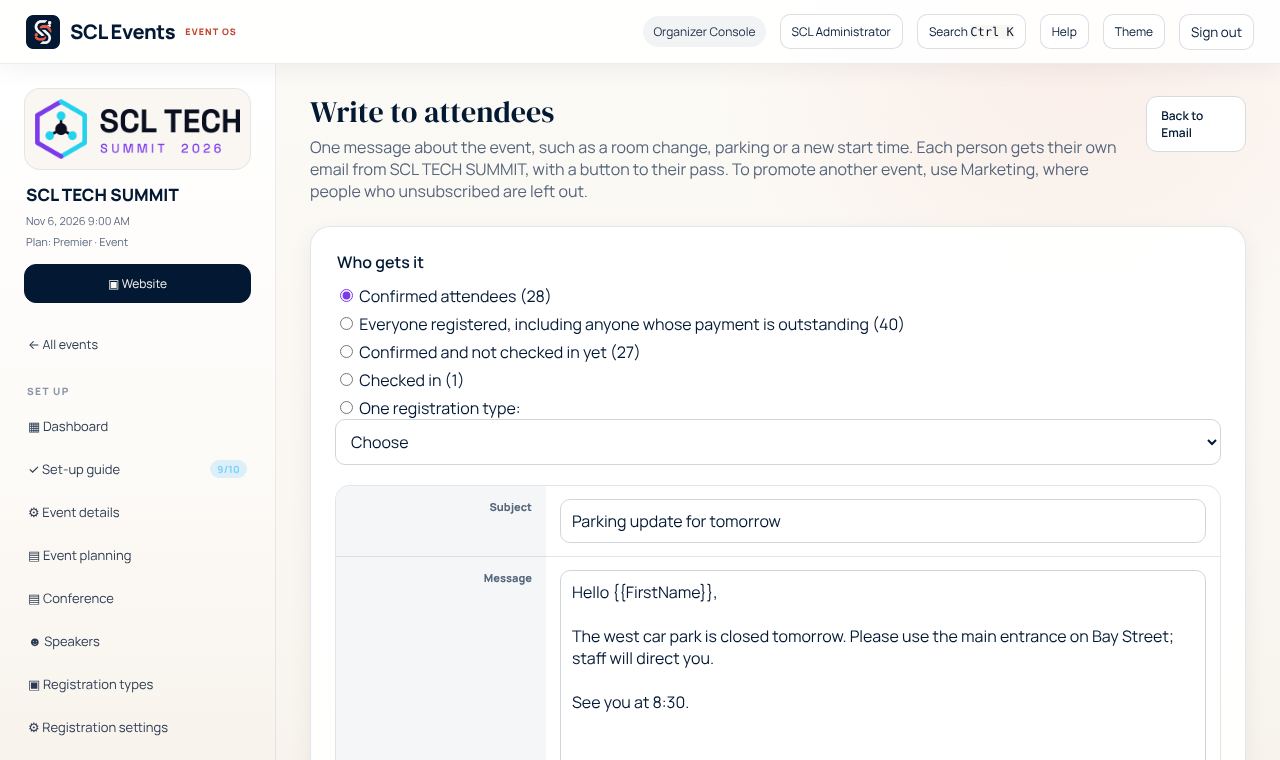
From the demo event. Your screen shows your own event. Resend a ticket
Where: The event › Attendees › the personOpen the person to resend their ticket, correct their details, or replace or transfer their place.
Send a text or WhatsApp message
Where: The event › Attendees & messages › Text messagesSend an announcement by WhatsApp or SMS to attendees who opted in. Connect your own WhatsApp or SMS account once under Reach attendees › Text Messages (your provider bills you directly). Your own number is included on Premier and Enterprise; on other packages it needs the SMS and WhatsApp messaging add-on for each event. Without your own WhatsApp number, an event can send its pass and reminders from SCL Events' number with the add-on WhatsApp from SCL Events' number, ordered on Plan and usage: BSD 150 for events up to 500 attendees (5,000 messages), BSD 0.30 an attendee above that (10 messages each). The event's Text messages page shows how many it has used. To promote your next event to past attendees, use Reach attendees › Marketing, where people who unsubscribed are left out.