 SCL Events
After the event: results and reports
Attendance, money, feedback and certificates, sending reports, and starting next year's event.
Open Reports
Where: The event › Money & results › ReportsWhere this event stands shows registrations, attendance, audience and revenue. The Report Center has the lists to download: the attendee register, attendance and check-in, session attendance, certificates, financial transactions, surveys, feedback and more. Executive Summary is a one-page overview for your board or sponsors.
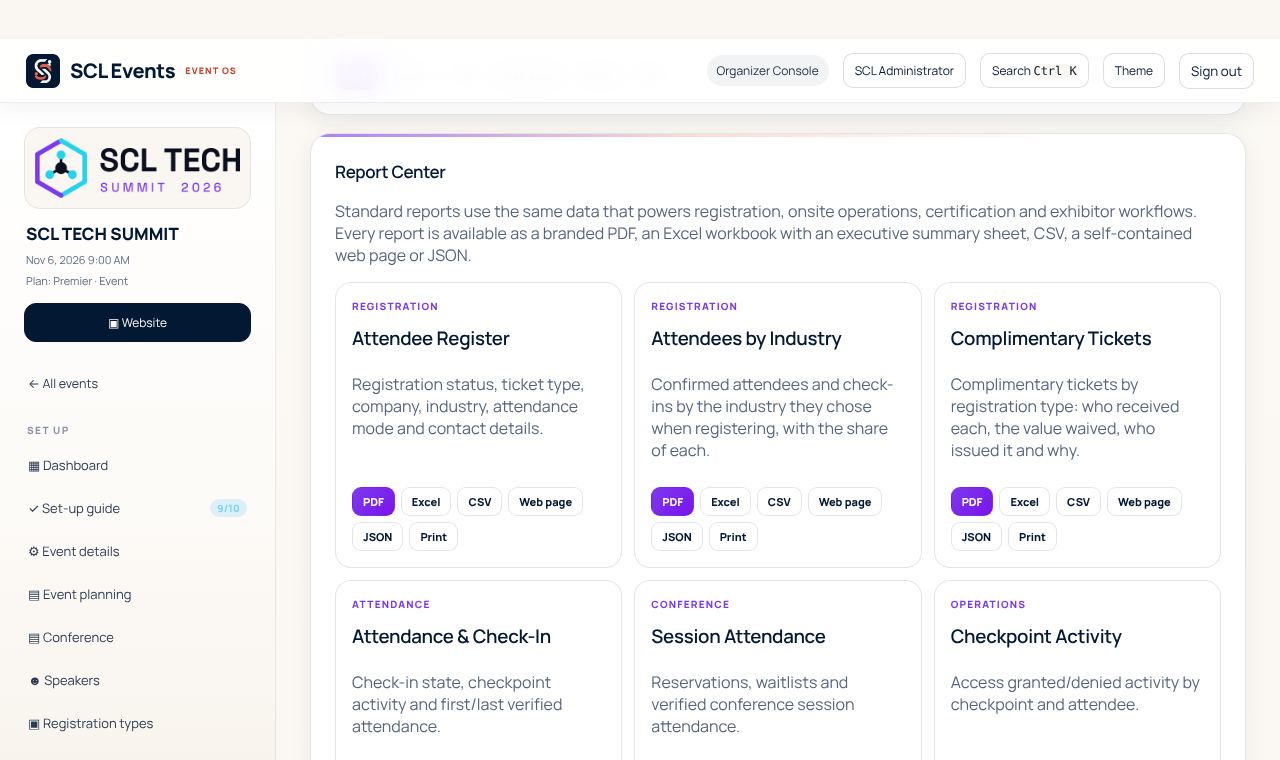
From the demo event. Your screen shows your own event. Email a report, or schedule it
Where: Reports › Email a report now; Scheduled Report DeliverySend a report to colleagues now, or set one to arrive daily, weekly or once after the event, for example the registrations list to the venue. Custom Report Builder makes your own columns and saves them as a template.
Close the money
Where: The event › Money & results › Financials and BudgetFinancials has every payment, refund and balance. Budget compares what the event cost with what you planned.
Look after attendee data
Where: Reports › Who downloaded attendee dataEvery download of attendee data is recorded with who and when. Download only what you need, and keep files out of shared folders.
Start next year's event
Where: The event › Set up › Copy / save as templateCopy the event, or save its set-up as a template. Registration types, prices, discount codes, the form, branding, planning, the agenda, surveys and certificates come across; registrations and payments stay behind. The showcase page is not copied: open the new event's page and build it from its fresh draft.